
Download Logitech Capture – Free Video Recording Tool for Creators
Overview
Logitech Capture is a free, lightweight video‑recording utility designed specifically for Logitech’s premium webcam lineup. Tailored for YouTubers, streamers, educators, and anyone who needs high‑quality video content, the app combines real‑time camera controls with basic editing features, allowing users to produce polished clips without leaving the desktop. Unlike the simpler Logitech Camera Settings, Capture focuses on recording, offering a richer set of tools such as filters, text overlays, and multi‑source composition. Whether you’re preparing a product showcase, a live‑stream intro, or a short TikTok clip, Logitech Capture puts the power of professional video production into the hands of anyone with a compatible webcam.
The software is built on a clean Windows‑centric interface, but a macOS version is also in development. It supports a handful of popular Logitech models—including the StreamCam, C922 Pro Stream, C920S HD Pro, and Brio 4K Pro—so owners of those cameras can immediately take advantage of its feature set. The app integrates seamlessly with major streaming platforms (YouTube, Twitch, Facebook Live) and can export recordings in both landscape (16:9) and vertical (9:16) aspect ratios, which is essential for mobile‑first audiences. In short, Logitech Capture serves as an all‑in‑one hub for webcam‑based content creation, delivering a balance of simplicity and flexibility that suits beginners and seasoned creators alike.
Key Features & Functionalities
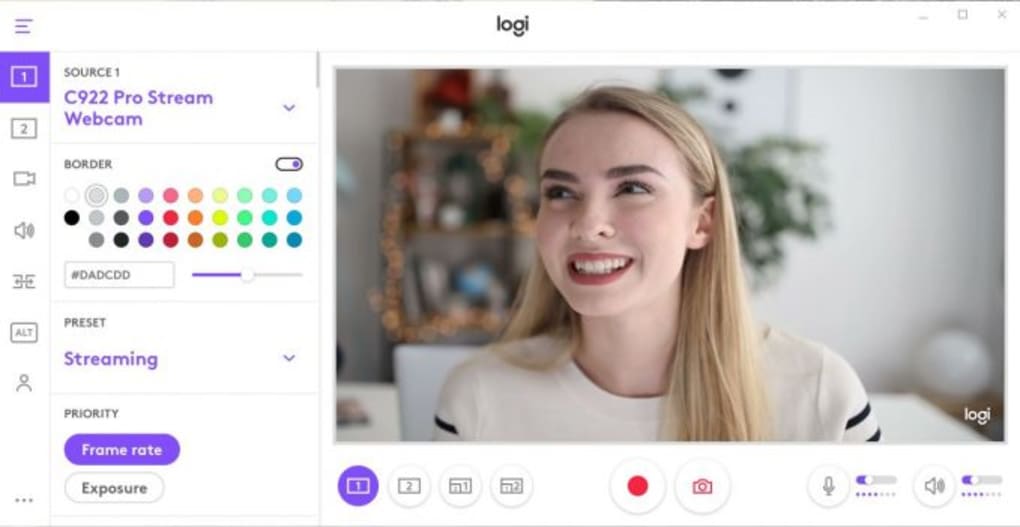
- Multi‑Source Layouts: Combine up to three video sources (webcam, screen capture, image) into a single composition, ideal for tutorials and presentations.
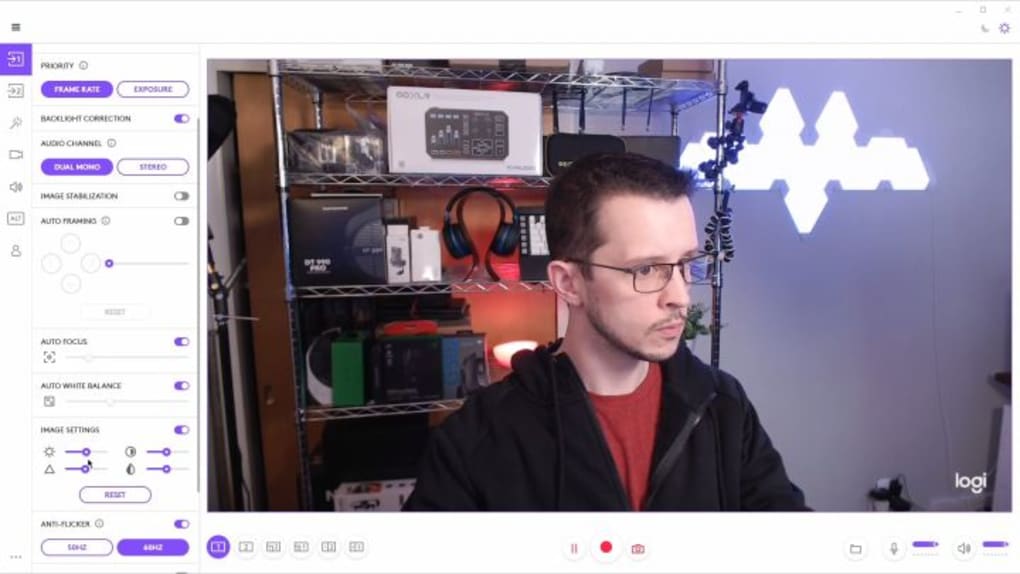
- Real‑Time Camera Controls: Adjust exposure, white balance, saturation, and focus on the fly, ensuring perfect lighting without post‑processing.
- Filters & Effects: Choose from a library of visual filters, background blurs, and animated borders to give each clip a unique style.
- Text Overlays & Lower Thirds: Add customizable captions, titles, and lower‑third graphics directly within the recording window.
- Vertical Recording (9:16): Create mobile‑optimized videos for TikTok, Instagram Reels, and Stories without additional cropping.
- Scene Switching: Pre‑set multiple scenes and switch between them instantly while recording, similar to professional streaming software.
- Direct Streaming Integration: Push live video to YouTube, Twitch, or Facebook with a single click, eliminating the need for separate broadcasting apps.
- Instant Export & Cloud Sync: Export recordings in MP4, MOV, or GIF formats and optionally sync to cloud storage for easy sharing.
Beyond these headline features, Logitech Capture also offers a modest library of transition effects, frame‑by‑frame trimming, and audio gain controls. The interface is divided into three primary panels: a preview window, a source manager, and a timeline‑like bar for quick cuts. Because the software is free and regularly updated, Logitech adds new filters and bug fixes based on community feedback, ensuring that the tool stays relevant as video trends evolve.
Installation & Usage Guide
Getting started with Logitech Capture is straightforward. First, visit the official Logitech website and locate the Download Logitech Capture page. Click the “Download for Windows” button (a macOS option appears when available) and save the installer to your computer. Run the .exe file and follow the on‑screen prompts: accept the license agreement, choose an installation folder (the default works for most users), and let the wizard complete the process. After installation, launch the app from the Start menu or desktop shortcut.
When you open Logitech Capture for the first time, the software will automatically detect any compatible Logitech webcam connected via USB. Select your device from the dropdown menu, then explore the three main tabs:
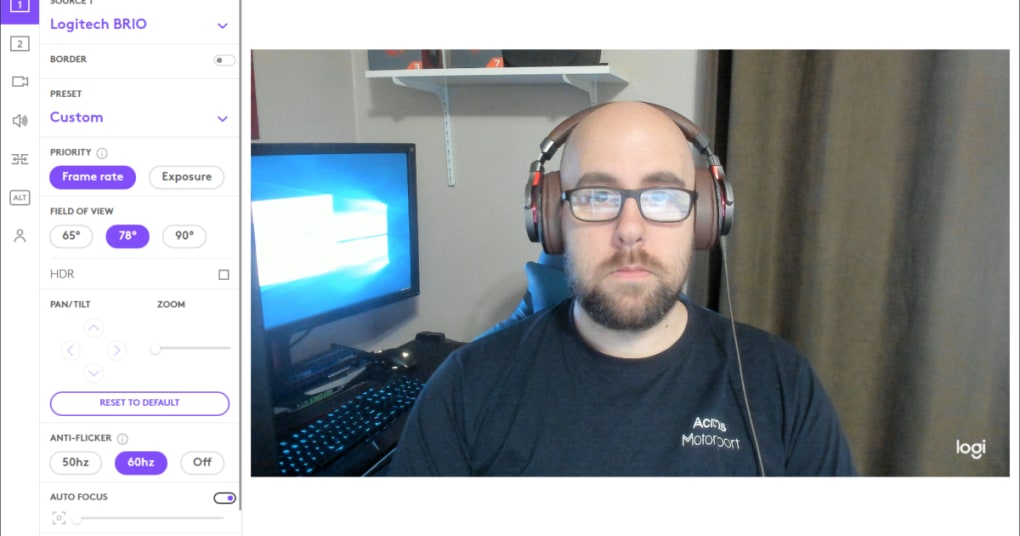
- Camera Settings: Here you can fine‑tune exposure, focus, and white balance. Toggle “Auto” modes if you prefer the camera to handle adjustments.
- Scene Builder: Drag and drop sources (webcam, screen capture, image) onto the canvas. Resize, reposition, and apply filters by clicking the icons below each source.
- Recording Controls: Press the red “Record” button to start capturing. Use the “Pause” feature to insert breaks without creating separate files. When finished, click “Stop” and the software will prompt you to name and save the clip.
For live streaming, click the “Stream” tab, select your preferred platform, log in with your credentials, and hit “Go Live.” The app will handle encoding and broadcast in real time. Remember to test your internet bandwidth and audio levels before going live to avoid dropped frames or muted sound.
Overall, the learning curve is gentle; most creators can produce a polished video within 10‑15 minutes of experimentation. Logitech provides an online knowledge base and short tutorial videos that cover advanced topics like scene transitions and multi‑camera sync for those who want to dive deeper.
Compatibility, Pros & Cons
Logitech Capture is officially supported on Windows 10 (64‑bit) and later versions. A macOS version is in beta and currently works on macOS 11 (Big Sur) and newer, though feature parity may vary. The software only works with a select group of Logitech webcams: StreamCam, C922 Pro Stream, C920S HD Pro, and Brio 4K Pro. Attempting to run Capture with an unsupported camera will result in a generic “device not recognized” message, although basic webcam functionality will remain available through the standard Windows Camera app.
Pros
- Free & Secure: No hidden fees, regular updates, and signed installers ensure a safe download experience.
- Integrated Editing: Basic cuts, filters, and text overlays eliminate the need for third‑party editing software for quick projects.
- Live‑Streaming Ready: One‑click connection to major platforms streamlines the broadcasting workflow.
- Vertical Video Support: Direct 9:16 recording saves time for creators targeting mobile audiences.
- Low System Impact: Optimized for modern PCs, the app runs smoothly even on mid‑range hardware.
Cons
- Limited Camera Compatibility: Only works with a handful of Logitech models, excluding older or lower‑end webcams.
- Basic Editing Only: Advanced post‑production features (multi‑track audio, keyframing) are absent, requiring separate software for complex projects.
- Windows‑Centric UI: The macOS version is still in beta and may lack some Windows features.
- No Direct Integration with Non‑Logitech Devices: Users with external microphones or capture cards must manage audio separately.
Despite these limitations, the overall value proposition remains strong for creators who already own a supported Logitech webcam. The free price tag, combined with real‑time controls and built‑in streaming, makes Logitech Capture a compelling first‑stop solution.
Frequently Asked Questions
Which Logitech webcams are compatible with Logitech Capture?
Logitech Capture works with the StreamCam, C922 Pro Stream, C920S HD Pro, and Brio 4K Pro. Other Logitech models may be recognized for basic video preview but will not unlock the full feature set.
Is Logitech Capture free or does it require a subscription?
The software is completely free to download and use. Logitech provides regular updates at no cost, and there are no hidden subscription fees.
Can I record in 4K resolution with Logitech Capture?
Yes, if you use a Brio 4K Pro webcam, Capture can record up to 4K (3840×2160) at 30 fps. The StreamCam and C922 support up to 1080p at 60 fps.
Does Logitech Capture support external microphones?
Audio input can be selected from any system‑recognised microphone, including USB or 3.5 mm external mics. However, advanced audio mixing features are not included.
Can I stream directly to YouTube using Logitech Capture?
Yes. The “Stream” tab lets you log into YouTube, Twitch, or Facebook Live and start broadcasting with a single click, without needing additional streaming software.
Conclusion & Call to Action
Logitech Capture packs a surprising amount of power into a free, easy‑to‑use package. For creators who already own a supported Logitech webcam, it eliminates the need for separate recording and basic editing tools, while also offering built‑in live‑streaming capabilities. The intuitive interface, real‑time camera adjustments, and vertical video mode make it especially attractive for modern content platforms such as TikTok and Instagram Reels. Although the limited webcam compatibility and modest editing depth may push power users toward more advanced suites, the overall value for its target audience is undeniable. If you’re ready to upgrade your webcam workflow without spending a dime, download Logitech Capture today and start creating polished videos in minutes.







